Invert PNG Colors — Flip Black to White
Drop a PNG below and invert its colors in one click — turn black to white, make a full negative, and transparent backgrounds stay transparent.
Drop your PNG here
or click to browse — you can also paste with Ctrl+V
🔒 Processed entirely in your browser — your image is never uploaded. Downloads also strip GPS and other metadata.
How to invert PNG colors
- Drop your PNG into the box above, click to browse, or paste it with Ctrl+V.
- The inverted preview appears instantly. Pick Invert All, single RGB channels, or an inverted grayscale look.
- Press Download Image to save the negative as a PNG at its original size — transparency untouched.



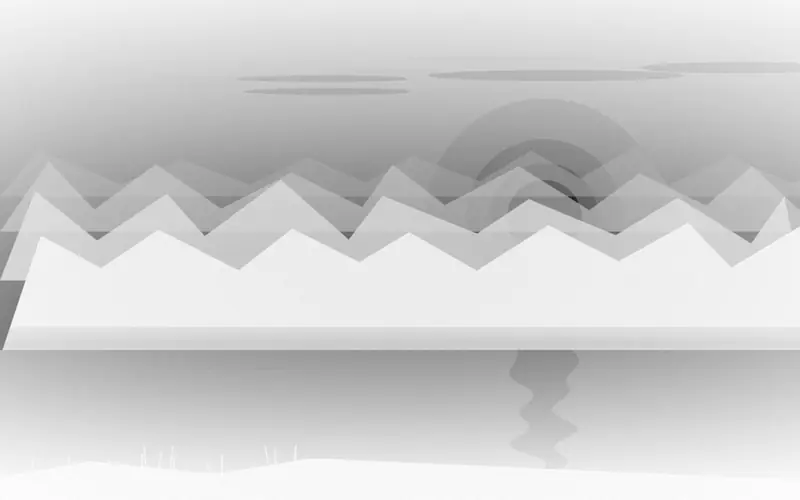
The checkered corners in each sample are transparency — untouched by all three modes, exactly as in your downloads.
Transparent stays transparent
A PNG's transparency lives in its alpha channel, and that channel is exactly what careless inverters destroy — one wrong export and your sticker sits on a black box. This tool rewrites only the red, green and blue values of each pixel and leaves the alpha channel alone, so fully clear areas stay clear and soft, semi-transparent edges keep their exact opacity. The download is a real PNG, not a JPG in disguise, which is what keeps the transparency alive after you save it.
Made for logos, icons, stickers and screenshots
Transparent PNGs are the working files of the web: logos that float on any header, icons that sit on colored buttons, stickers for chats, UI assets and cut-out screenshots. They are also the files where a color flip is most useful — a dark icon set becomes light for dark mode in one click, a light watermark becomes visible on bright photos. Because the resolution never changes and the export is lossless, the inverted file drops straight back into your design tool or codebase.
A note on JPG and WebP downloads
PNG uploads always come back as lossless PNG. Non-PNG uploads keep a familiar format too — a JPG downloads as a JPG, a WebP as a WebP — but those formats re-encode through the browser's canvas, so the saved file is a fresh encode of the inverted pixels rather than a byte-for-byte copy of your original. For artwork where every pixel matters, work from and save to PNG.
More free image tools
Negato grew out of one simple inverter and now covers the whole workflow around it. Invert image colors of any format, invert a logo for dark mode, flip the colors of a PDF page, or edit PNG colors by replacing and recoloring individual shades. Going monochrome instead? The grayscale converter keeps natural shades and the threshold tool produces pure two-color black and white — all free, watermark-free, and processed entirely in your browser.
Frequently asked questions
Will the transparent background stay transparent when I invert a PNG?
Yes. The inversion touches only the red, green and blue values and never the alpha channel, so transparent and semi-transparent pixels keep their original opacity. Your file downloads as a PNG with transparency intact.
Why did my PNG come back with a black background from another tool?
That tool flattened your image onto a solid color, which usually happens when it exports a JPG. This tool always exports PNG for PNG uploads, so the clear areas stay clear.
Does inverting a PNG reduce its quality?
No. The picture keeps its original resolution up to ~16 megapixels; larger images are scaled down once for browser compatibility. The download is a lossless PNG with no compression artifacts and no watermark.
Can I invert only part of my PNG?
This page inverts the whole image in one pass. If you need a selective effect — one element left in its original colors — use Edit PNG Colors, where the bucket and per-color tools let you target specific shapes instead of the entire canvas.
Does it work on JPG and other formats?
Yes. JPG, WebP, GIF and BMP files invert just as well, and those downloads keep a familiar format (re-encoded through the browser's canvas — see the note above). PNG uploads are special: they always come back as lossless PNG so the transparency survives untouched.
How do I turn a black PNG white (or white to black)?
Inverting is the one-click way: black flips to white and white to black in the same pass. This is a full negative — every other color flips too, which is usually what you want for icons and dark-mode assets. If you need only the black swapped while other colors stay put, that is a recolor job for PNG Color Changer.
Why did my QR code stop scanning after I inverted it?
Most scanners expect dark modules on a light background. If your QR was light-on-dark, inverting it turns it into the classic dark-on-white layout and scanning usually works again — test by pointing your camera at the downloaded file. If it still fails, the quiet zone (the white border) may have been lost; rebuild the QR rather than stacking more filters.
Can I invert an X-ray or a scanned film negative?
Yes — inverting an X-ray or a black-and-white scan of a film negative shows it the way it looks as a print, and this page handles both. Color film negatives are a different beast: they carry an orange color mask that a straight RGB flip does not remove, so use the dedicated film negative converter for those, or Negative Image Maker to create negatives from ordinary photos.
How do I invert image colors on Windows 10?
Windows 10's built-in Photos and Paint apps have no one-click invert, so the quick route is a browser tool: open this page in Edge, drop the image (PNG, JPG or WebP all work), and press Download. It runs entirely in the browser on your PC — no install, no upload.
Invert Image
Turn any picture into a color negative — all colors, single RGB channels or grayscale.
Open the inverter →Invert Logo Colors
Make the dark-mode version of your logo — export as a PNG, flip the colors, keep transparency.
Open the logo inverter →Invert PDF Colors
Turn bright scanned pages into dark mode or rescue dark printouts — export the page, invert it here.
Open the PDF page inverter →Edit PNG Colors
Replace colors, remove color from a PNG, recolor with the bucket or invert — transparency always preserved.
Open the color editor →PNG Color Changer
Change the color of a PNG in one click — pick a shade, swap it everywhere.
Open the color changer →Rotate Image
Turn a photo 90°, 180° or any custom angle — the canvas expands so nothing is cropped.
Open the rotator →Black & White Converter
Convert any photo to black and white with natural luminance shades — transparency preserved.
Open the B&W converter →Compress PNG to 100KB
Shrink big PNG files toward a 100 KB target in your browser.
Open the PNG compressor →